


End of Season Summary

Dec 09, 2025
 76
76
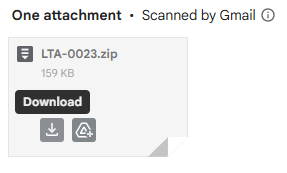
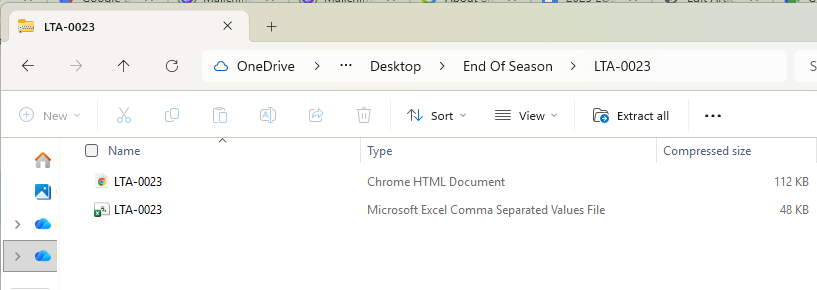
In the email that you received, you'll find a zip file that contains a CSV file and an HTML file. These contain all scan data taken by your scanner during this season. The CSV is similar to what you may have downloaded from the User Scan dashboard and an HTML file that is a map view of your that scan data. Simply save the attachment to your computer and then open it up to access the files. The CSV file can be opened with a program like Excel or Google Sheets. The HTML can be opened with your favorite browser.
Please give us a call or send us an email if you have any questions.
Viewing the map data (HTML file).
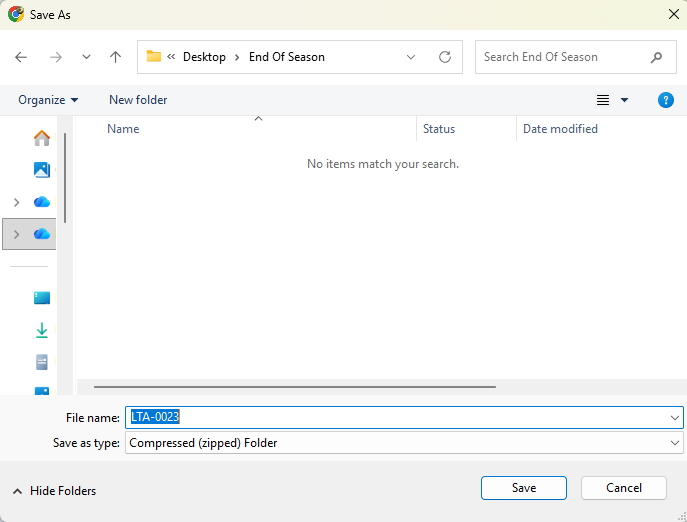
- Save the zip file to your computer.
- Open the zip file to view the contents.
- Find and open the HTML file.
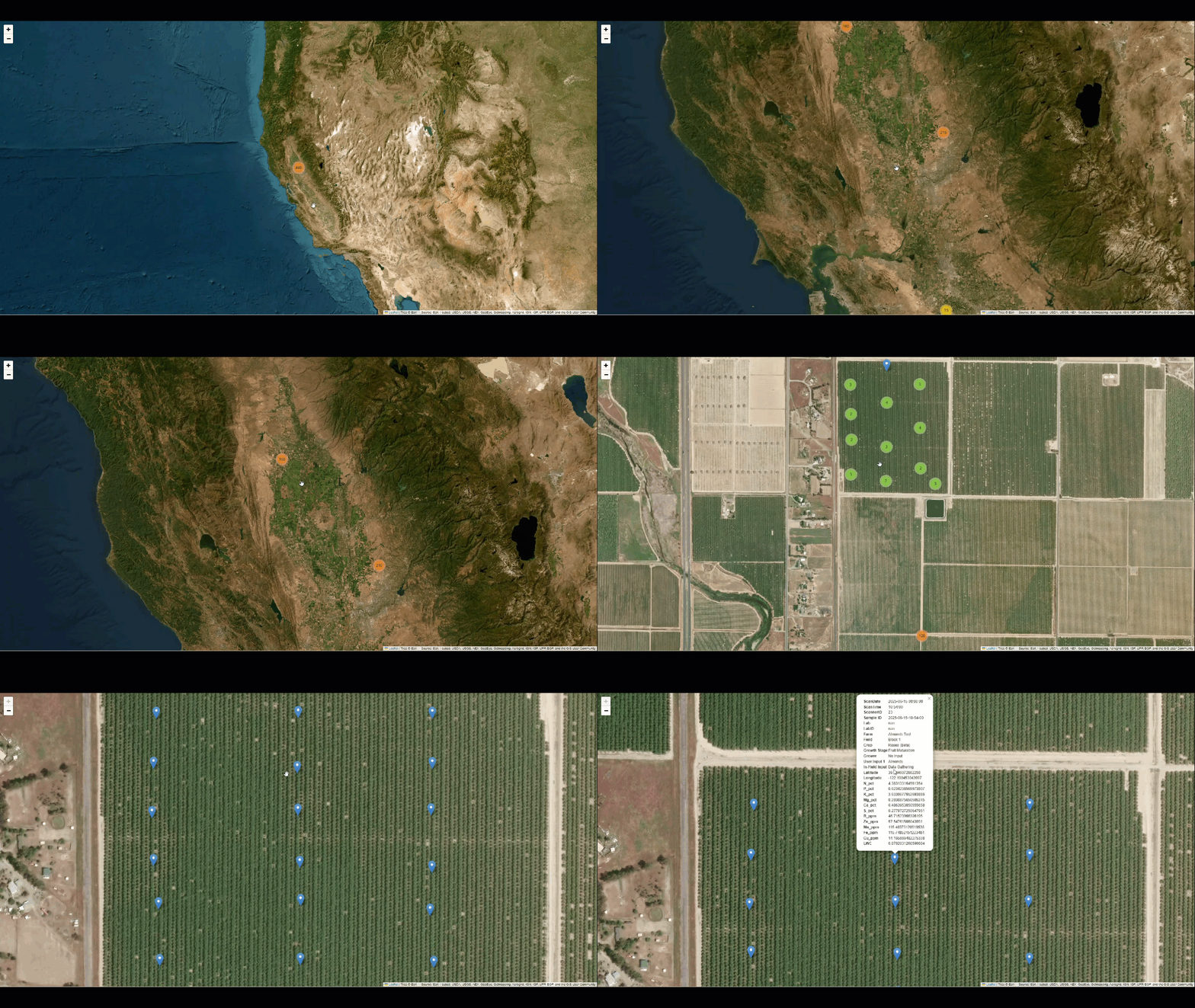
- A map of your scan data will show in your default browser.
- Zoom in to view individual scan points.
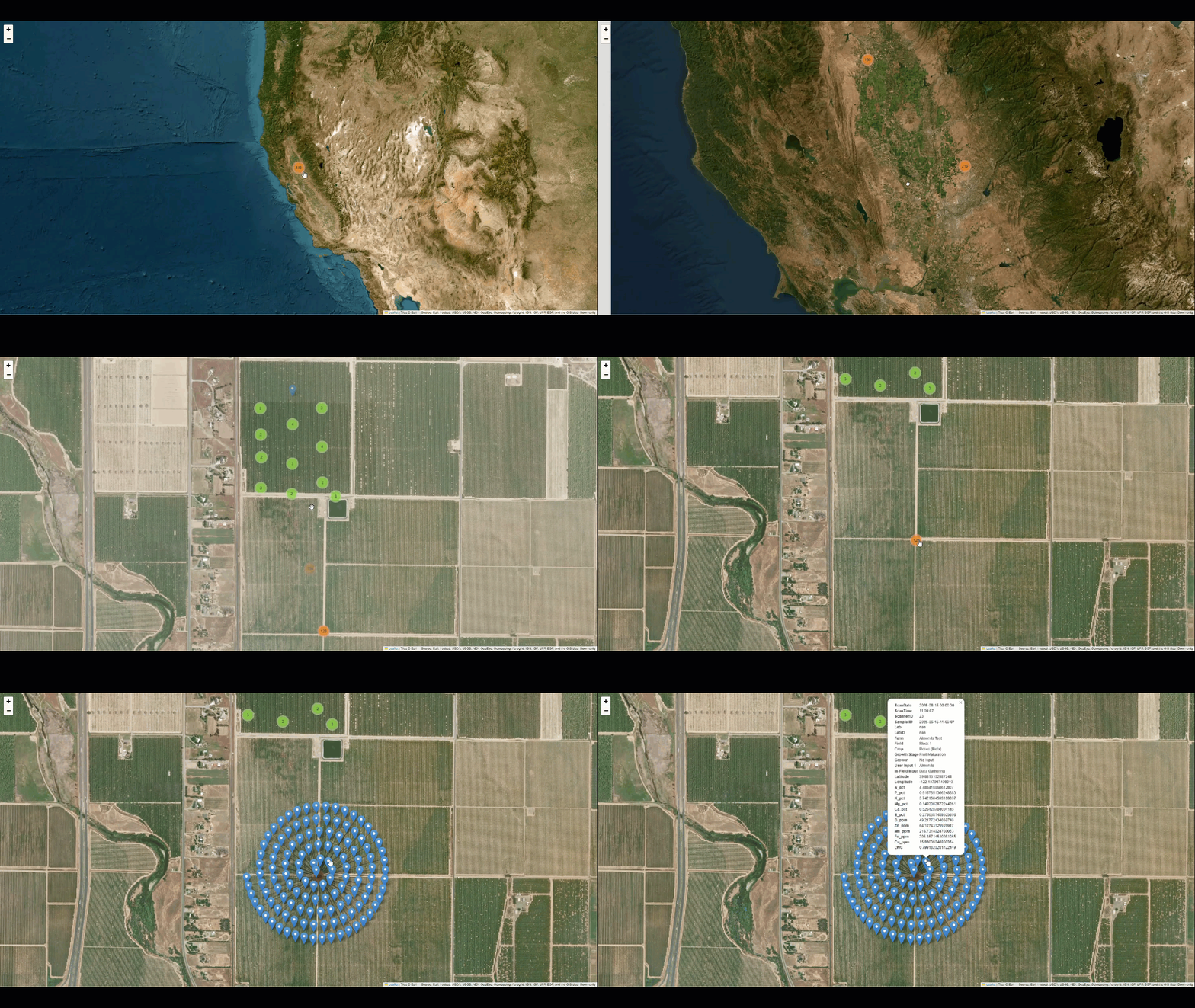
- Click on individual scan points to see the data that was collected during that scan.
- Note: If multiple scans that were taken at one location, then the map program will show them in a circular pattern. Zooming in will show the scan data.
Viewing the CSV file.
- Start the same as above, but open the CSV file rather than the HTML file.
- Use a program like MS Excel or Google Sheets to view the data.

