

Connecting the scanner to Wi-Fi

Sep 22, 2026
0

After Getting Started in the App.
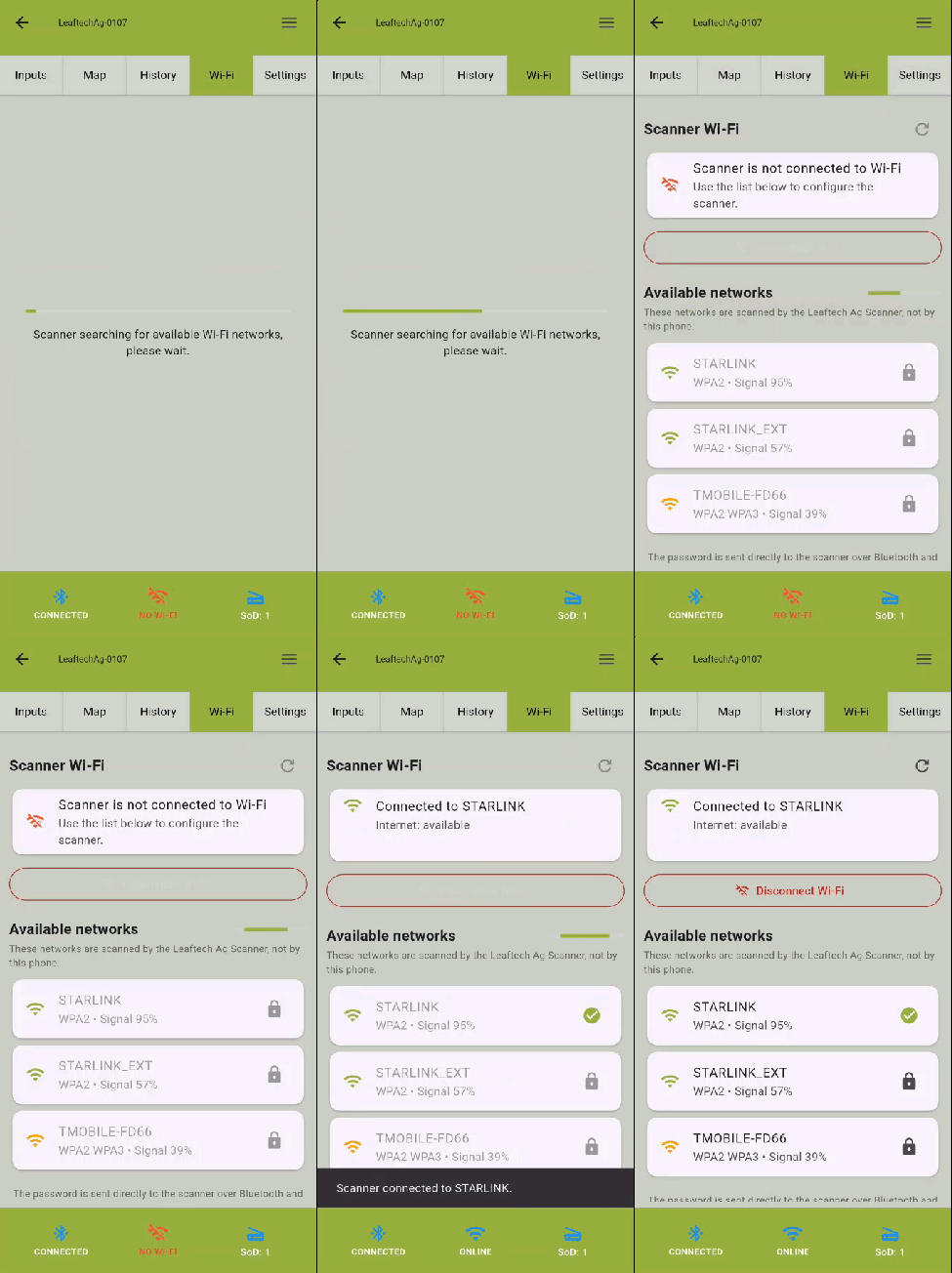
- Open the Wi-Fi Tab
- The App will display display a list of available networks for the scanner to use.
- Select the one that is appropriate Wi-Fi
- Fill in the Wi-Fi's password.
- Tap Connect.
Note: Your scanner and phone need to be connected to the same network in order for you to see scan images during the confirmation screen.
Next Article: Loading Scan Pins to Map

