

Getting Started in the App

Sep 22, 2026
2

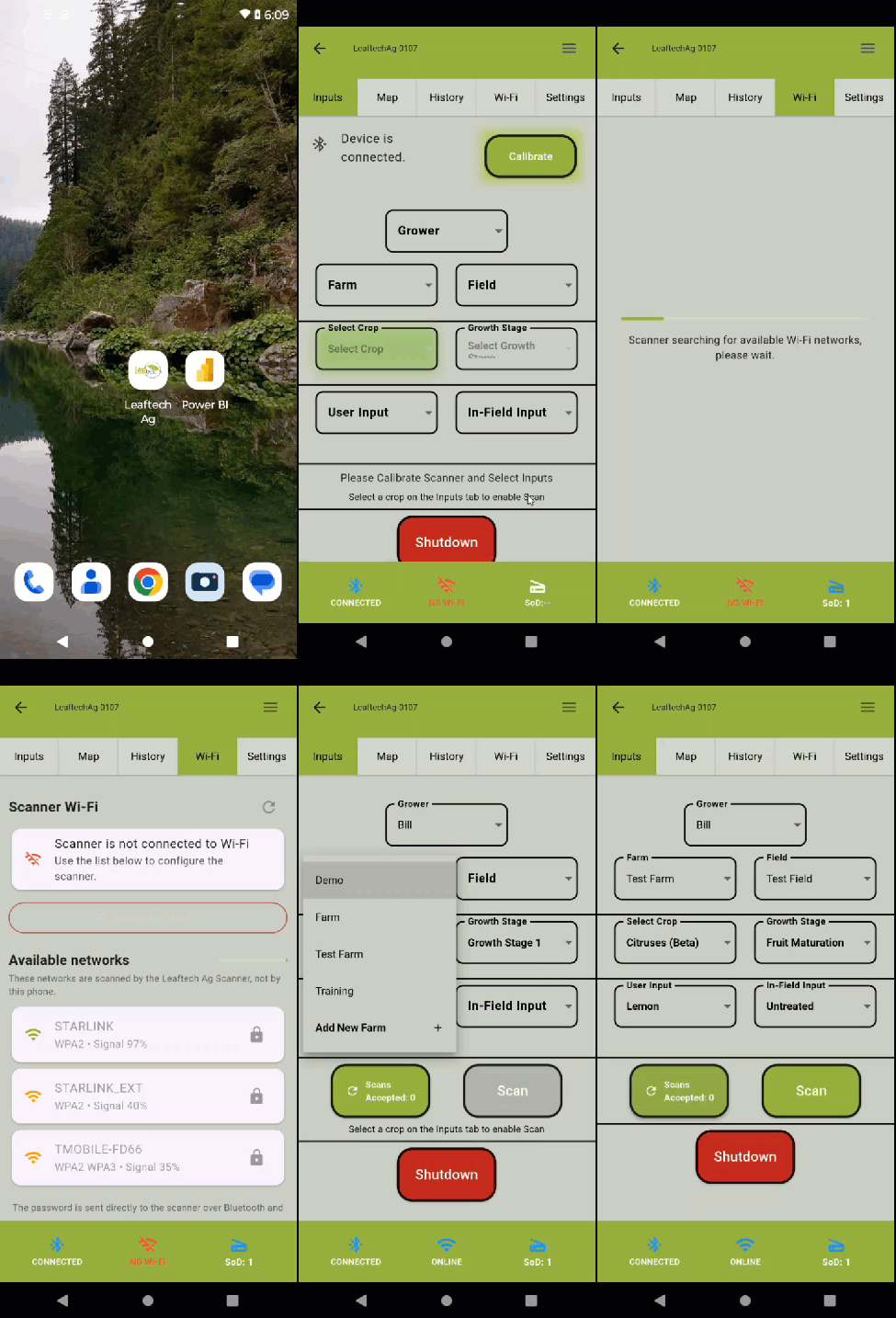
After connecting to your scanner:
- Start the app.
- Agree to the EULA
- Select Connect to a paired Leaftech Device
- Select your scanner from the list on the Find Devices screen.
- Ensure that the scan bed is clear of leaves and is clean.
- Tap on the Calibrate button.
- The Status LED should illuminate
- A Calibration Successful message should appear. Tap OK.
- Verify that the bottom 3 status icons are blue.
- If necessary, connect to a Wi-Fi network. See KB - Configure Wi-Fi Settings for details.
- On the Inputs tab. Select the details for your scans from the drop down lists.
- You may need to add entries to the drop down lists.
- You are now ready to scan.
-
Next Article: Scanning

