

Viewing Historic Scan Images

Sep 22, 2026
0

After Getting Started in the App.
- Select the History tab.
- Expand out the desired Scan Session.
- Tap on the chevron on the right of the scan.
- The scanned image and metadata will show.
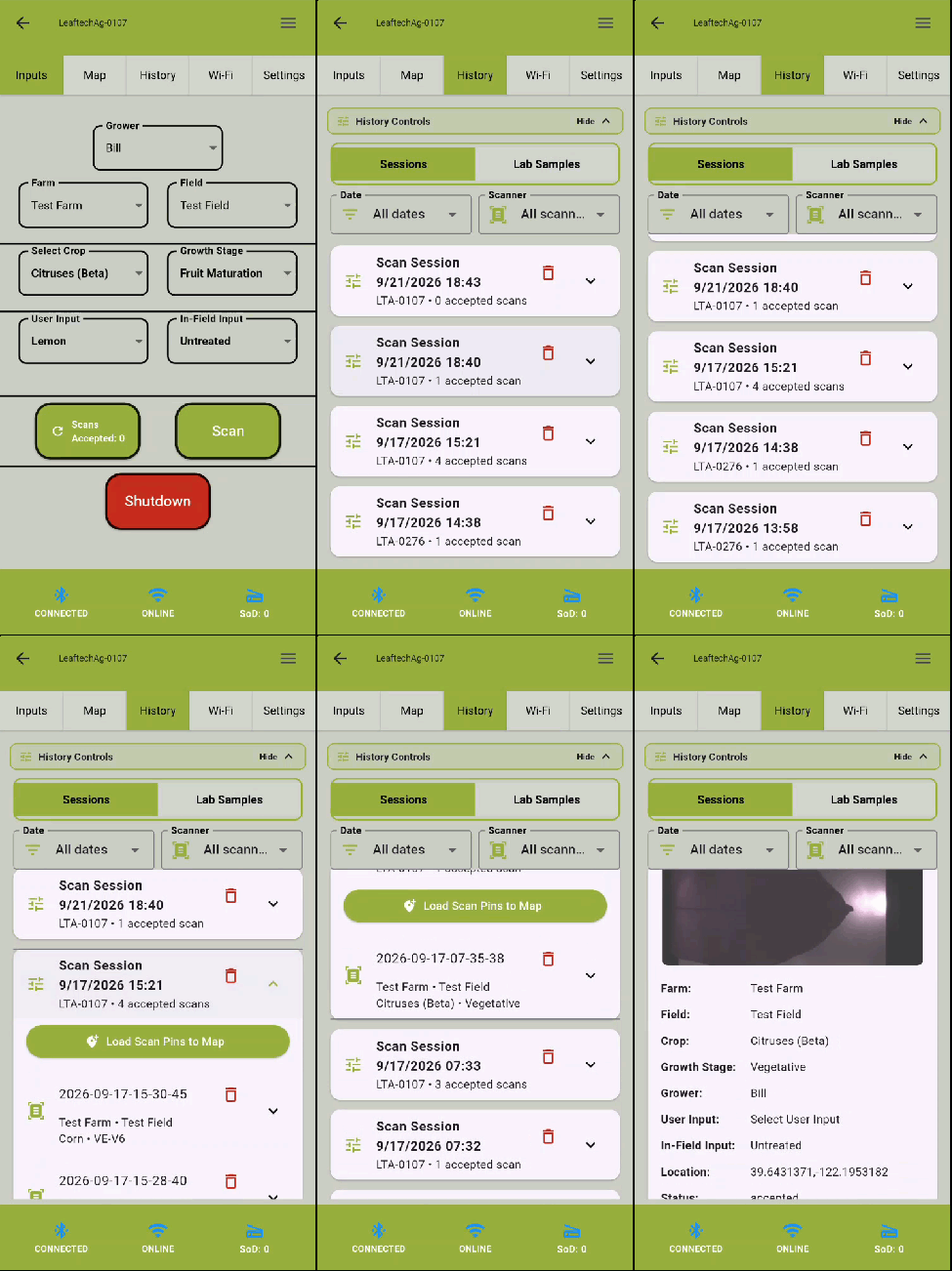
Note: Images are stored on the scanner. You will need to be connected to the scanner that took the image in order to view it.
Next Article: Lab Tissue Sampling

