

After Scanning

Sep 22, 2026
4

After you've finished scanning:
- Tap on the SoD button in the bottom right corner of the app to verify that the scans have been uploaded. Note: Any scans that have not been uploaded are saved on the scanner and can be uploaded at a later time.
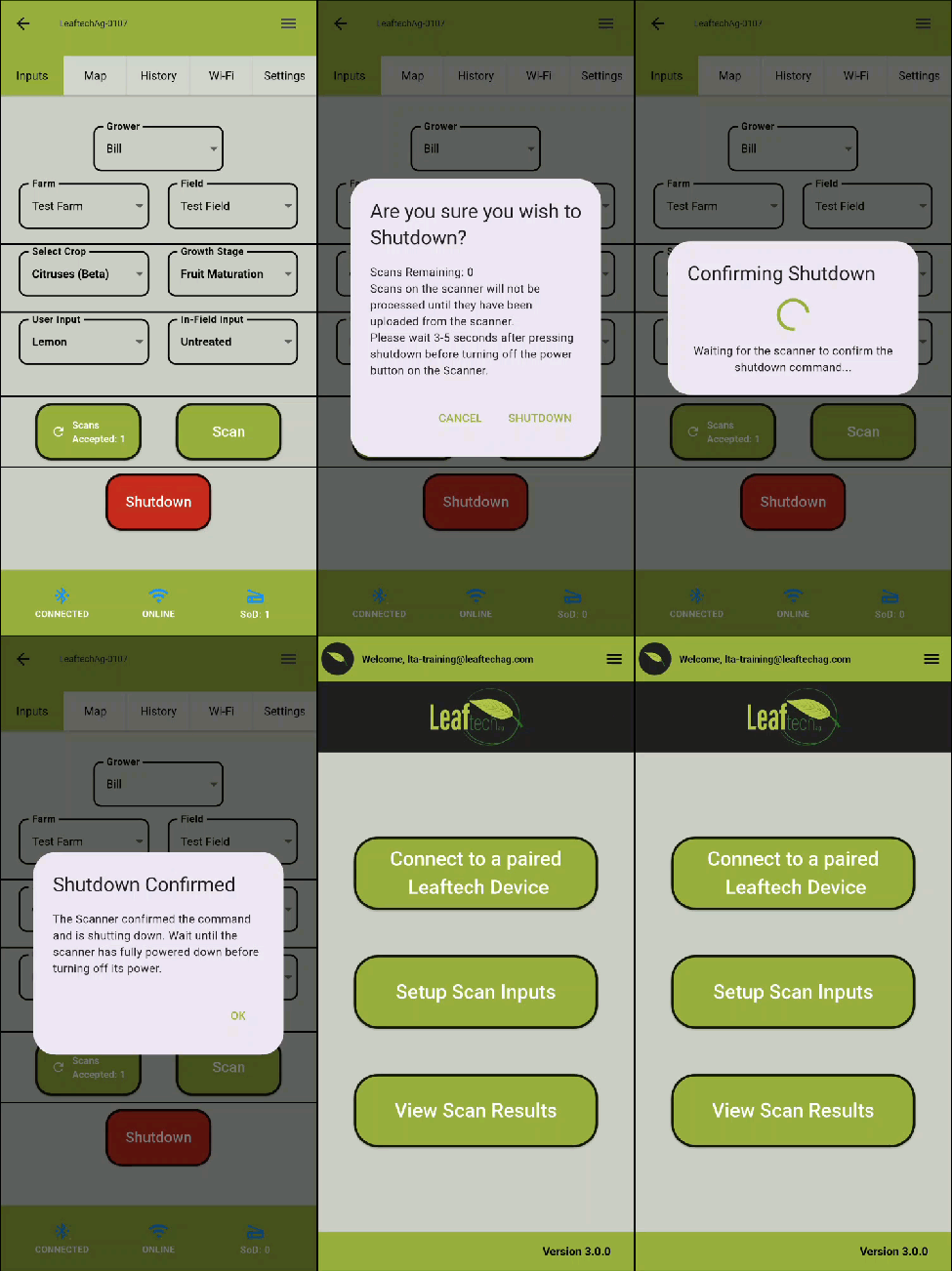
- Tap the shutdown button.
- A confirmation screen will be shown.
- If you wish to continue using the scanner, then tap the cancel button. Tap Shutdown if you wish to power off the scanner.
- If you tap Shutdown on the confirmation screen, the scanner will complete its shutdown process and you will be shown a confirmation screen.
- Toggle the rocker switch to power off the scanner.
- Tap OK on the Shutdown Confirmation screen.
- Verify that the leaf sample has been removed from the scan bed.
- Remove the battery and store the scanner in its case.
Next Article: App Tabs

